
Gif Converter
Make an animated GIF from a video clip or a series of images, right in your browser. Pick the start time and length, choose the frame rate and width, and the converter captures the frames, builds an optimised 256-colour palette and encodes the GIF. Nothing is uploaded — your video stays on your device.
- Free to use
- No sign-up
- Runs in your browser
Video / images to GIF
GIF & Short Video Planning Kit
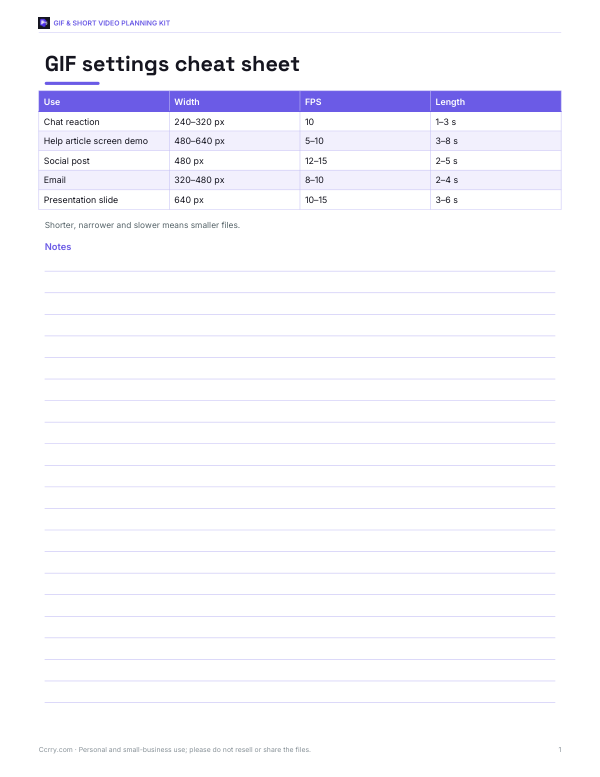
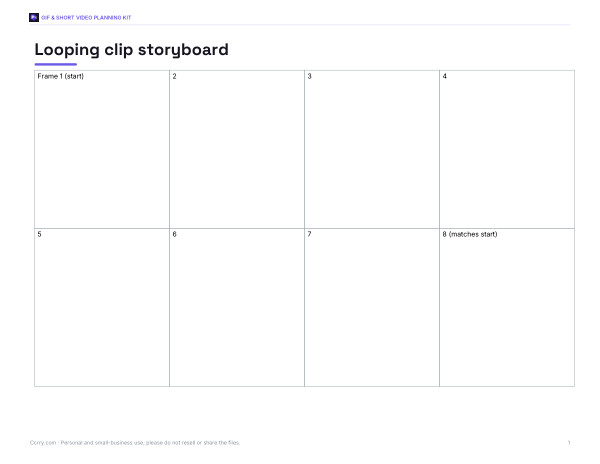
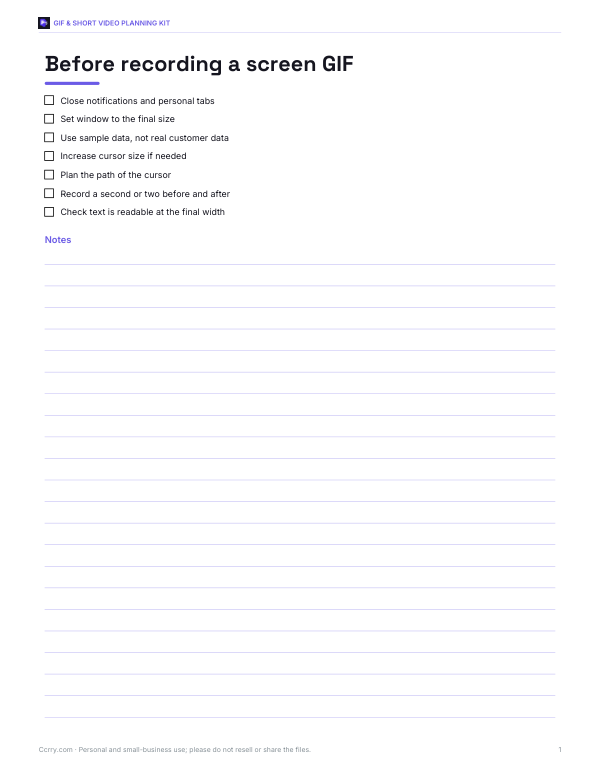
Printable GIF size and settings cheat sheet, a storyboard template for looping clips, a screen-recording checklist and a platform size limits log.
- Settings cheat sheet (PDF)
- Loop storyboard (PDF)
- Screen recording checklist (PDF, DOCX)
- Platform limits log (PDF, DOCX, XLSX)
Formats: PDF, DOCX, XLSX. Instant download after payment (link valid 72 hours, up to 5 downloads). AI-assisted: the templates were drafted with AI help and reviewed and laid out before publishing.
$5.00 USD, one-time 4 files · about $1.25 each
- Instant download
- 7-day refund
- Secure checkout by Stripe
7-day money-back guarantee. Full refund within 7 days of purchase, even after you download.
Free sample: GIF Settings Cheat Sheet (PDF, 60 KB)
Full refund within 7 days — see the refund policy and license.
Free printables
Single sheets you can print right now, no sign-up. The full pack adds every sheet in one download plus the editable files.
 Printable GIF Limits Log
How to make a GIF from a video
- Choose a video file — MP4, WebM or MOV clips that your browser can play.
- Set the start time and length; short clips of two to five seconds make the best GIFs.
- Choose the frame rate: 10 fps is smooth enough for most clips and keeps files small.
- Choose the width: 320–480 pixels suits messages and web pages.
- Click “Make GIF”, preview the result and download it.
For a slideshow GIF, select several images at once instead of a video. Each image becomes one frame, and the frame rate controls how fast they change (5 fps shows each image for 0.2 seconds).
How the converter works
The converter plays through your clip, capturing a frame at each time step onto a canvas. GIF images can use only 256 colours, so it then analyses the colours across all frames and builds a shared palette using a median-cut algorithm, which splits the colour space where most pixels are. Each frame is mapped to its nearest palette colours and compressed with LZW, the compression method defined by the GIF format. The result is a standard GIF89a file that loops and plays in every browser and messaging app.
Keeping GIF files small
| Setting | Effect on size |
|---|---|
| Length | The biggest factor — every extra second adds many frames |
| Frame rate | 10 fps has half the frames of 20 fps |
| Width | Halving the width reduces pixels to a quarter |
| Content | Busy scenes, gradients and camera motion compress poorly |
| Colour | Simple graphics with flat colours compress very well |
Many platforms limit GIF sizes, often to a few megabytes. If a GIF is too big, shorten it, lower the frame rate or width, or choose a calmer section of the video.
GIF vs video formats
GIFs are universally supported and loop automatically, but they are inefficient: a GIF can be ten times larger than an MP4 or WebM of the same clip, and the 256-colour limit causes banding in gradients and skin tones. For websites, short muted looping videos (MP4 or WebM with autoplay, loop and muted attributes) are usually a better choice. GIFs remain the simplest option for chat apps, email, documentation, forums and anywhere video is not supported.
Worked example
To show a new software feature in a help article, a writer records a 6-second screen capture. They set start 1.0 s and length 4 s, 10 fps and 480 px wide. The converter captures 40 frames, builds a palette dominated by the interface colours and produces a GIF of a few hundred kilobytes that loops smoothly in the article. A second version at 320 px is small enough for a chat message.
Tips for great GIFs
- Pick a moment with a clear beginning and end so the loop feels natural.
- Keep the camera still if possible; motion across the whole frame increases size.
- Crop or record at the size you need rather than shrinking a huge frame.
- For screen recordings, a lower frame rate (5–10 fps) is usually enough.
- Avoid tiny text; it becomes unreadable after scaling.
- Add captions in the source video if the GIF needs to explain something.
Limits in the browser
Conversion happens on your device, so very long or very high-resolution clips can take time or run out of memory, especially on phones. The converter limits clips to 15 seconds. Some video formats and codecs (for example certain HEVC files) cannot be decoded by every browser; if a file will not load, convert it to MP4 (H.264) first. The converter does not add dithering, so gradients may show visible colour bands.
Making GIFs for documentation and support
Short GIFs are excellent for showing a process in help articles, release notes and support replies: a click sequence, a drag-and-drop, or where to find a setting. Keep each GIF to one action, start and end on a still moment, and pair it with a short text description for accessibility and for readers who cannot view animations. Screen recordings with flat interface colours compress very well, so even a 10-second demo can stay small at 5–10 frames per second.
Accessibility
Looping animations can distract some readers and, if they flash rapidly, can affect people with photosensitive conditions. Avoid flashing more than three times per second, keep motion gentle, and provide alternative text describing what the GIF shows. On websites, consider a video element that users can pause, or a static first frame with a link to play.
Copyright
Only make GIFs from videos you own or have permission to use. Sharing clips from films, TV or other creators’ videos may be restricted even as short GIFs, depending on the platform and your jurisdiction.
Privacy
Your video or images are processed entirely in your browser. Nothing is uploaded, stored or shared.
Frequently asked questions
How do I convert a video to a GIF?
Load the video, set start time, length, frame rate and width, then click Make GIF and download.
Is my video uploaded?
No, conversion runs on your device.
What is the best frame rate for a GIF?
10–15 fps for most clips; 5–10 fps for screen recordings.
Why is my GIF so large?
GIFs grow quickly with length, width and frame rate; reduce any of them.
Can I make a GIF from photos?
Yes, select several images at once.
What is the maximum length?
15 seconds, to keep conversion reliable in the browser.
Does the GIF include sound?
No. GIF is an image format and cannot carry audio.